

How to access the photos and videos taken by the Raspberry Pi Camera Module?
Nov 13, 2026
Leave a message
Hey there! As a supplier of Raspberry Pi camera modules, I often get asked about how to access the photos and videos taken by these nifty little devices. So, I thought I'd put together this blog post to walk you through the process.
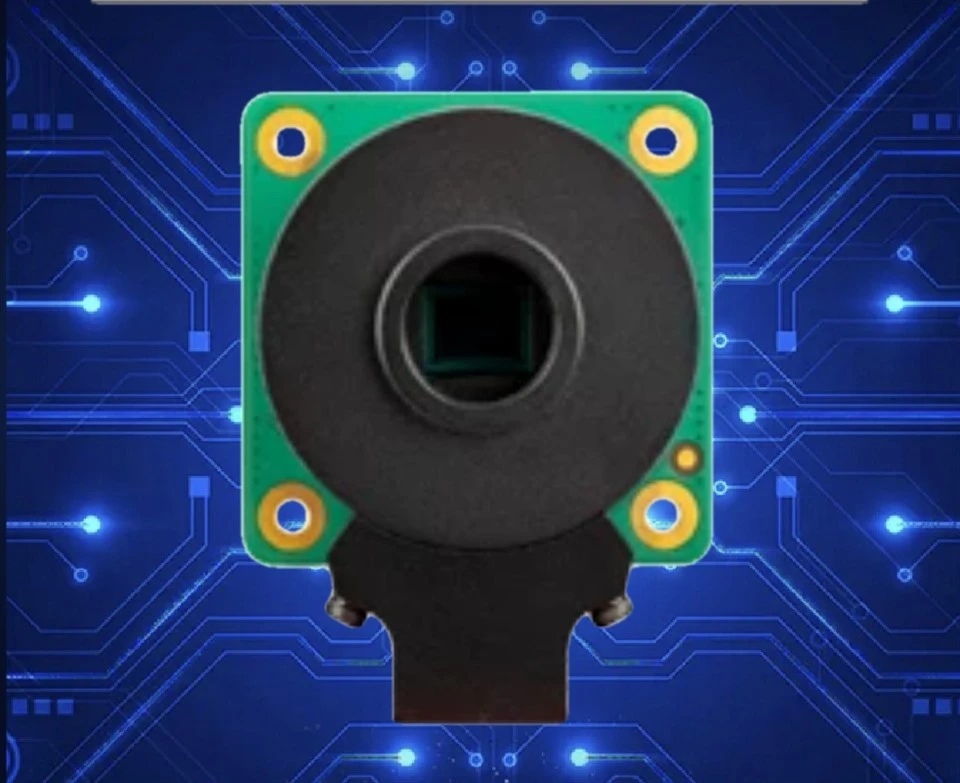
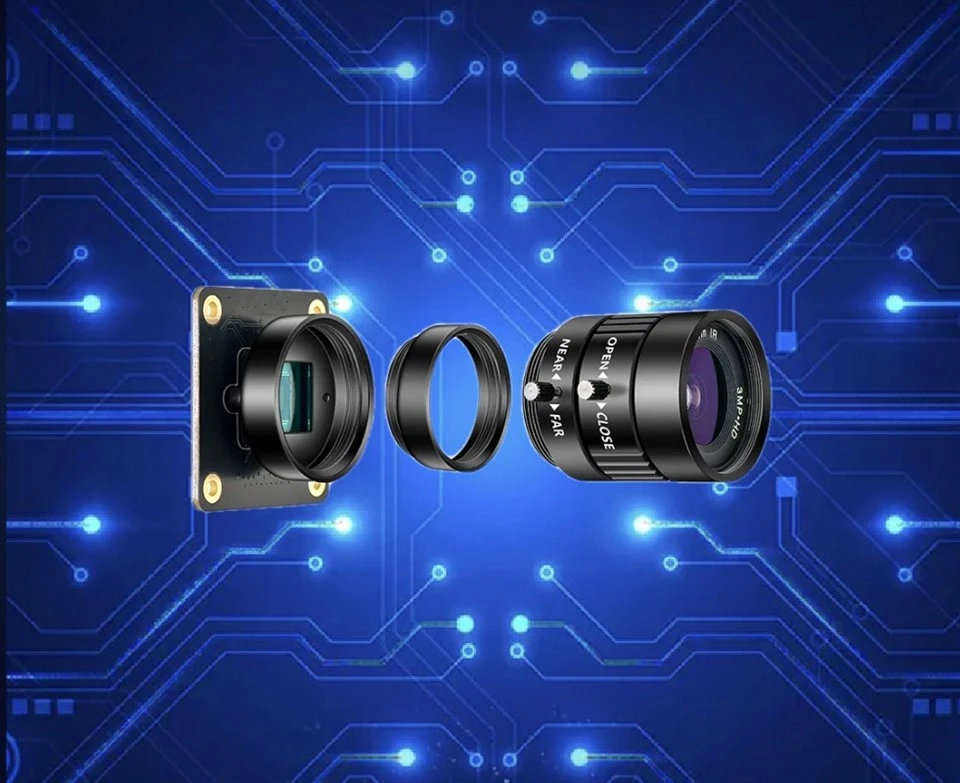
First off, let's talk about the different types of Raspberry Pi camera modules we offer. We've got the HQ Camera M12 Mount IMX477R, which is a high-quality camera with great image and video capabilities. Then there's the Raspberry Pi Noir Camera V2 IMX219, perfect for those low-light situations. The Raspberry Pi Global Shutter Camera 5/4B/3B+ Black and White 720P OV9281 120FPS is great for fast-moving objects, and the Raspberry Pi Wide Angle Camera V3 NoIR IMX708 gives you a wide field of view. And last but not least, the Raspberry Pi Global Shutter Camera 5/4B/3B+ 1080P IMX296 offers high-resolution video.
Now, let's get into how to access the photos and videos. The first step is to make sure your Raspberry Pi is set up and the camera module is properly connected. You'll need to enable the camera interface in the Raspberry Pi configuration settings. You can do this by opening the terminal and typing sudo raspi-config, then navigating to the "Interfacing Options" and enabling the camera.
Once the camera is enabled, you can start taking photos and videos. There are a few different ways to do this. One of the simplest is to use the raspistill and raspivid commands in the terminal. For example, to take a photo, you can type raspistill -o image.jpg in the terminal. This will take a photo and save it as image.jpg in the current directory. To record a video, you can use the raspivid command. For instance, raspivid -o video.h264 -t 5000 will record a 5-second video and save it as video.h264.
Now, how do you access these files? Well, if you're using a Raspberry Pi with a graphical user interface (GUI), you can simply open the file manager and navigate to the directory where the photos and videos are saved. Usually, they'll be in the home directory or a subdirectory you specified when taking the photos or videos.
If you're accessing the Raspberry Pi remotely, you can use a tool like FileZilla. FileZilla is a free and easy-to-use FTP client. You'll need to know the IP address of your Raspberry Pi and the username and password to log in. Once you're connected, you can browse the files on the Raspberry Pi and download the photos and videos to your local computer.
Another option is to use SSH (Secure Shell) to access the Raspberry Pi's command line. You can then use commands like scp (Secure Copy) to transfer the files from the Raspberry Pi to your local computer. For example, if you want to transfer a photo named image.jpg from the Raspberry Pi to your local computer, you can type scp pi@<Raspberry Pi IP address>:image.jpg . in the terminal on your local computer. The . at the end means the file will be transferred to the current directory on your local computer.
If you're using a Raspberry Pi Zero, which doesn't have a built-in Ethernet port, you can use a USB OTG cable to connect it to your computer. You can then use the sftp (Secure File Transfer Protocol) command to transfer the files.
Now, let's talk about some tips and tricks. If you want to take a series of photos at regular intervals, you can use a Python script. Here's a simple example:
import time
import picamera

with picamera.PiCamera() as camera:
    for i in range(10):
        camera.capture('image{0:04d}.jpg'.format(i))
        time.sleep(1)
This script will take 10 photos, one every second, and save them with names like image0000.jpg, image0001.jpg, etc.
If you're having trouble getting the camera to work, make sure the ribbon cable is properly connected. Sometimes, a loose connection can cause issues. Also, check the permissions of the files. Make sure you have the right to access and transfer them.
In conclusion, accessing the photos and videos taken by the Raspberry Pi camera module is pretty straightforward. Whether you're using the terminal commands, a GUI, or a remote access tool, there are plenty of ways to get your hands on those great shots.
If you're interested in purchasing any of our Raspberry Pi camera modules, we'd love to hear from you. Feel free to reach out to us to discuss your requirements and start a procurement negotiation. We're here to help you find the perfect camera module for your project.
References:
- Raspberry Pi Documentation
- Online forums and communities for Raspberry Pi users